Figma Make turns a written prompt, a sketch, or a rough file into a working prototype – not a static mockup, but a screen you can actually click through. So instead of designing every screen by hand, your team describes intent, and the tool builds the first draft. In this article, we break down how it works, what makes it different from older prototyping tools, and where it fits in a real design workflow.
What Figma Make Actually Is
Most people hear “AI design tool” and picture something that spits out a layout and calls it done. Figma Make is built differently. It is an AI-powered design environment that sits inside Figma and bridges the gap between a static wireframe and a working, code-based prototype. So the output isn’t a picture of an app, it’s something closer to a real one.
Here’s the shift that matters: your role moves from manual execution, what designers often call “pixel-pushing” – to design orchestration. In other words, you’re no longer placing every element by hand. Instead, you describe the structure and behavior you want, and Figma Make interprets that intent and builds it. You still make every meaningful decision; the tool just removes the repetitive labour around it.
"The designer's job doesn't disappear — it moves up a level, from placing pixels to directing intent."
Context-Aware Generation: Why It Doesn't Feel Generic
A lot of AI design tools produce output that looks like it came from nowhere – generic buttons, default fonts, layouts that don’t match your brand. Figma Make avoids this because it isn’t working in isolation. It pulls directly from your existing design ecosystem before it generates anything.

Design system integration
Through what Figma calls Make Kits, the tool reads your existing component libraries, npm packages, and style tokens. As a result, generated screens follow your typography scale, your colour palette, and your spacing rules, not a generic default theme. This is the difference between an AI tool that “designs for you” and one that designs like you.

Multi-modal inputs
You’re also not limited to typing a prompt and hoping for the best. You can attach PDFs, screenshots, videos, or raw text files directly into the prompt box. For example, you might upload a competitor screenshot and a brand guideline PDF in the same prompt and Figma Make uses both as concrete context to steer the output toward something usable on the first try.
Why this matters in practice
- Generated screens stay on-brand instead of looking templated
- Your component library gets reused, not recreated
- Multi-modal input reduces the number of prompt-and-retry cycles
The Idea-to-Prototype Pipeline
The biggest claim around Figma Make is that it compresses the product development lifecycle. That claim holds up mainly because of two features: Plan Mode and Point-and-Edit.
Plan Mode
Before any screen gets generated, Plan Mode asks you to define the architecture first. You lay out the intent behind a feature — say, an onboarding flow before the AI starts building the interface. Therefore, the tool understands what it’s building before it builds it, which cuts down on the misreading’s that happen when an AI guesses structure from a vague prompt alone.

Point-and-edit
Once a prototype exists, you rarely want to regenerate the whole thing for one small change. That’s where point-and-edit comes in. You click directly on a UI element inside the generated prototype and give a plain-language instruction. For example, “make the button glow on hover.” The change applies to that one property, and everything else stays untouched. So you get surgical refinements instead of full-project regeneration every time you tweak something.
High-Fidelity Interactivity, Not Just Pictures
Traditional design tools produce click-through mockups, screens linked together to simulate navigation, but with no real logic underneath. Figma Make goes further by producing functional, code-backed prototypes.
Living prototypes
Because the output is code-backed, your team can validate complex UX flows — hover states, form submissions, dynamic data loading — without waiting for a developer to build the first version. As a result, usability testing happens earlier, when changes are still cheap to make.

Version history
Every AI iteration and every manual tweak gets tracked. In addition, this version history means your team can revert instantly if an AI-generated change introduces a regression in the prototype. So experimentation feels safe instead of risky — you can always roll back.
Developer-Designer Convergence
Handoff friction, the gap between a finished design and a working build, has always been one of the slowest parts of shipping software. Figma Make is built to close that gap directly.
Local codebase access
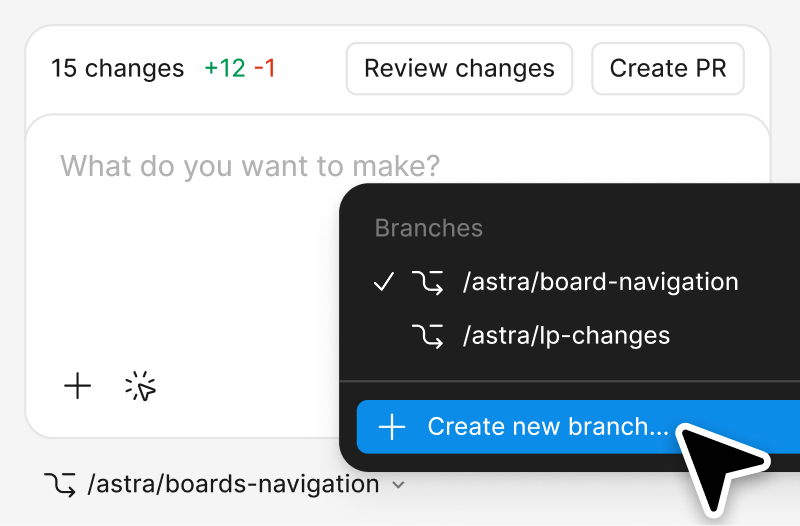
With its newer features, Figma Make is working toward converting designs into localized, production-ready code. In other words, the line between “design file” and “codebase” gets thinner. This is still evolving, but the direction is clear: less translation, more direct output.
 Annotation and feedback
The built-in comment and annotation system lets designers and developers iterate on AI-generated code inside the same file. So instead of bouncing between a design tool and a ticketing system, both sides work in one shared workspace – sometimes called “vibe coding,” where iteration happens through conversation rather than a formal spec document.
Figma Make Features at a Glance
Here’s a quick reference if you want the technical benefit of each feature without re-reading the full breakdown above.
| Feature | Technical Benefit |
|---|---|
| Make Kits | Ensures AI output matches your existing design systems and npm packages |
| Plan Mode | Prevents misread structures by requiring a defined intent before generation |
| Point-and-Edit | Enables iterative refinement without regenerating the full prototype |
| MCP Connectors | Connects designs to external data, documents, and real-world tasks |
| Version History | Maintains auditability across both AI and manual modifications |
Why "Control" Is Still the Whole Point
A common fear around AI design tools is the loss of control, the worry that the AI will make decisions you didn’t sign off on. That concern is fair, but it misreads how Figma Make is built. The entire tool follows a human-in-the-loop philosophy.
In practice, that means the AI proposes; you decide. Plan Mode forces intent before generation. Point-and-edit keeps every change scoped and visible. Version history means nothing is ever permanent without your approval. Because of this, the AI behaves like a fast, capable partner – not an automated replacement that runs ahead without you.
“Teams using AI-assisted prototyping have reported moving from concept to a testable, clickable asset in a fraction of the time it used to take, without skipping the review steps that catch real usability issues.”
— Pattern observed across enterprise product teams adopting AI-assisted prototyping, including organizations like Ticketmaster and Affirm
The Real Win: Velocity, Not Just Output
Strip away the technical detail, and the core benefit of Figma Make comes down to one metric: how fast an idea becomes something testable. Concepts that used to take days to turn into a clickable prototype can now reach that stage in hours.
This matters because the cost of changing direction drops sharply the earlier you catch a usability problem. So when a team can test a flow on day one instead of week three, they catch friction points while they’re still cheap to fix. Meanwhile, developers join the conversation earlier too, because the prototype they’re looking at is already closer to real, functioning code – not just a picture of an idea.
At Graphymania, we see this firsthand with the teams we work with. AI-assisted tools like Figma Make don’t replace the judgement a trained designer brings to a product — but they do remove the dead time between “we have an idea” and “we can actually test it.” And in product design, that dead time is often the most expensive part of the process.
In Conclusion
Figma Make isn’t a gimmick layered on top of Figma. it’s a genuine shift in how the first draft of a product gets built. It reads your design system, respects your brand, and turns a written intent into a working prototype you can actually click through. However, the real value isn’t speed alone; it’s speed combined with control, because every step, from Plan Mode to point-and-edit, keeps a human decision in the loop. So if your team is still treating early prototypes as throwaway sketches, it’s worth rethinking that – because Figma Make can turn that sketch into something testable by the end of the day.
"When prototypes become testable in hours instead of days, innovation stops waiting for execution."

MOHD ARMAN
FAQs
1. What is Figma Make?
Figma Make is an AI-powered design environment inside Figma that turns prompts, sketches, and files into working, code-based prototypes. Instead of producing static layouts, it generates interactive screens that respond to clicks, hovers, and real input.
2. Does Figma Make replace designers?
No. Figma Make runs on a human-in-the-loop model. It speeds up the first draft and handles repetitive structure, but every output still needs a designer’s judgement on usability, brand fit, and edge cases.
3. Can Figma Make use my existing design system?
Yes. Through Make Kits, Figma Make reads your existing libraries, style tokens, and npm packages, so generated screens follow your brand’s typography, colour, and spacing rules instead of generic defaults.
4. What is Plan Mode in Figma Make?
Plan Mode is a step where you define the structure and intent of a feature before Figma Make generates anything. It reduces the chance of the AI misreading your request and producing the wrong layout.
5. How is Figma Make different from a regular wireframe tool?
Traditional wireframe tools produce static, click-through mockups. Figma Make produces functional, code-backed prototypes that can handle real interactions, like form submissions and dynamic data loading, before a developer writes any code.